- Apps
- Premium
-
VPN Locations
- Help
- Sign up
- Sign in
VPN for Smart TV
Whether your TV can run a VPN depends on its operating system, not its brand. Find your TV below and you'll know in a minute what to install, or what to use instead.
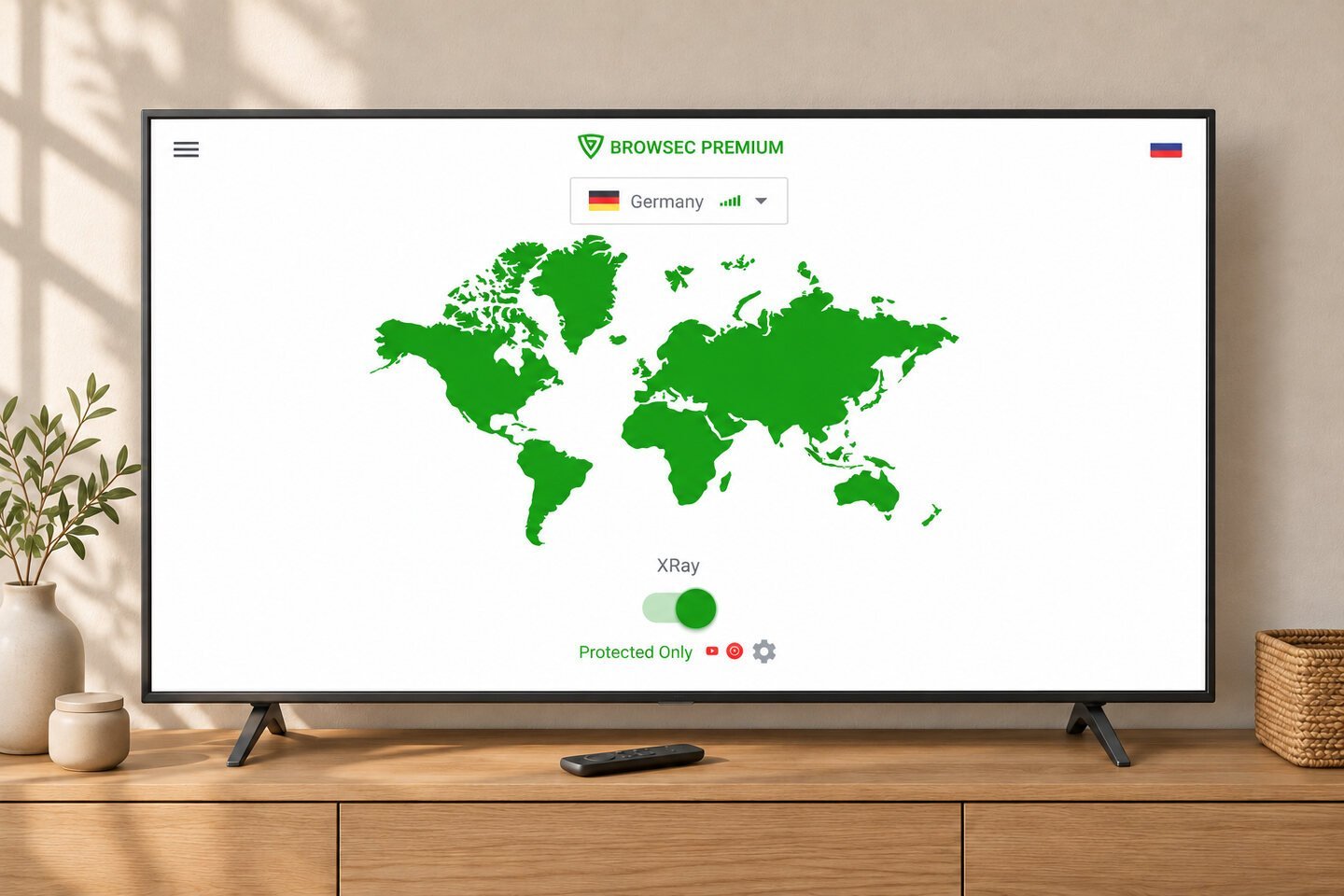
Browsec has apps for Android TV, Google TV and Apple TV. One Premium subscription covers up to 5 devices.
How to get a VPN on your TV
Check your TV's system first, then follow the step that matches it:
-
01
Check your TV's system
The brand alone doesn't tell you: TCL, for example, sells Google TV, Roku and Fire TV models. Open Settings on the TV and look for About, Device information or Support. If you see Android TV OS or Google TV, your TV can run Browsec. If a streaming stick is plugged in, check the stick, not the TV.
-
02
Android TV or Google TV: use Google Play
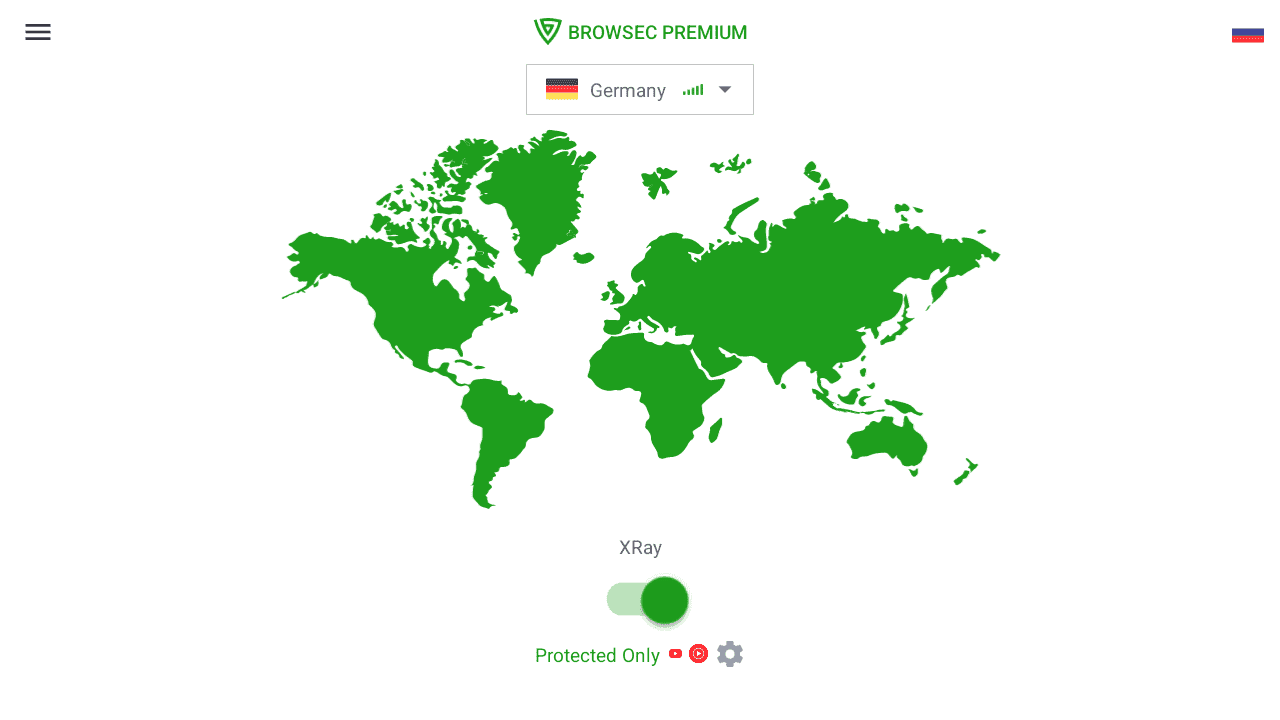
Open Google Play on the TV, search for Browsec and select Install. Then open the app, turn on the switch, allow the VPN connection and pick a location. If Google Play is unavailable, you can download the universal APK from the Android TV page.
-
03
Apple TV: use the App Store
Check that your Apple TV runs tvOS 17.6 or later in Settings > General > About. Open the App Store, search for Browsec and select Get. Then open the app, allow the VPN configuration and pick a location.
-
04
Samsung, LG and others: add a streaming stick or a laptop
These TVs can't install VPN apps. Plug a Google TV stick or an Apple TV into the TV's HDMI port, install Browsec on it and watch through the stick. Or connect a laptop running Browsec to the TV with an HDMI cable.
Which smart TVs can run a VPN?
Android TV, Google TV and Fire TV devices running Fire OS
Sony Bravia, Chromecast with Google TV, Google TV Streamer, Nvidia Shield, and Android TV or Google TV models from TCL, Philips, Hisense and Xiaomi. Install Browsec from Google Play on Android TV or Google TV. On a Fire TV Stick running Fire OS, enter is.gd/broapk in Downloader. For an older stick that has trouble connecting, try is.gd/brotvapk.
Apple TV: yes
Apple TV HD and every Apple TV 4K with tvOS 17.6 or later. Install Browsec from the App Store. Older Apple TV models have no App Store, so they can't run VPN apps.
Samsung, LG, Roku and others: no VPN apps
Samsung (Tizen), LG (webOS), Roku, Vizio and VIDAA TVs from Hisense and Toshiba can't install VPN apps, and their settings have no VPN option. You can still use a VPN with them: see the options below.
How to use a VPN on Samsung, LG and other TVs
Plug in a streaming stick
A Google TV stick or an Apple TV plugs into any TV's HDMI port and runs VPN apps. Install Browsec on it and everything you watch through the stick goes through the VPN. It's the easiest option for everyday watching: full picture quality, and no phone or laptop to keep nearby.
Show your laptop or phone on the TV
Connect a laptop to the TV with an HDMI cable and turn on Browsec on the laptop. The Browsec desktop app, included in Premium, protects every app on it, and the free browser extension is enough if you watch in Chrome, Firefox or Edge. No cable? Turn on Browsec on your phone and mirror its screen to the TV: Smart View on Samsung, Screen Share on LG, or AirPlay on TVs that support it. The picture is lower quality than over HDMI, and some streaming apps block mirroring and show a black screen.
Why casting doesn't work
In most streaming apps, the Cast and AirPlay buttons send the TV a link to the video, and the TV downloads the stream over its own connection. Your phone's or laptop's VPN isn't involved, so the streaming service sees your TV's real location.
Why use a VPN on a smart TV
Watch from wherever you are
Away from home, connect your TV or streaming stick through a location back home, so streaming apps see an IP address from your home country. Browsec has 46 locations to choose from.
Keep your viewing private
Your internet provider can see which streaming services your TV connects to, when and for how long. With a VPN on, it sees only encrypted traffic to a Browsec server.
One subscription for the whole household
A Browsec Premium subscription covers 5 devices at the same time: the TV or streaming stick, phones, laptops and browsers. Everyone in the house can use the same account.
Safer on shared Wi-Fi
Hotel and dorm networks are shared with strangers. A VPN encrypts your streaming device's traffic before it leaves the device.
What people say about Browsec
Muhammad Sajjad HussainReally find a wonderful VPN app, also be a premium user, find it most suitable and user friendly in all aspects as stated in its description. Thumbs up.
Stoyan9Tried many times in diff countries, never fails
SeregaI love it. This app is the best. I downloaded approximately 14 other similar apps and none of them worked the way they supposed to. This app works perfectly awesome
Q8DiverBrowsec is the best VPN app ever, excellent job developers 👍 keep going
Get Browsec for your TV
7-day money-back guarantee
Frequently asked questions
Can I put a VPN on a smart TV?
It depends on the TV's operating system, not the brand. Almost no TV has a VPN built into its settings, but some can install VPN apps. TVs and boxes running Android TV or Google TV, such as Sony Bravia, Chromecast, Nvidia Shield and many TCL, Philips and Hisense models, can install them from Google Play. So can Apple TV HD and Apple TV 4K with tvOS 17.6 or later, from the App Store. Samsung (Tizen), LG (webOS), Roku and Vizio TVs can't install VPN apps. On those, plug in a streaming stick that can, such as a Google TV stick or an Apple TV, and install the VPN there. Or connect a laptop with a VPN to the TV with an HDMI cable.
How do I use a VPN on a Samsung smart TV?
Samsung TVs run Tizen, which doesn't allow VPN apps, so you can't install one on the TV itself. The most reliable fix is a streaming stick: plug a Google TV stick or an Apple TV into the Samsung's HDMI port, install Browsec on it, and watch through the stick. You can also connect a laptop running Browsec to the TV with an HDMI cable, or turn on Browsec on your phone and mirror its screen with Smart View. Mirroring gives a lower-quality picture, and some apps block it.
How do I use a VPN on an LG smart TV?
LG TVs run webOS, which doesn't support VPN apps. Plug a Google TV stick or an Apple TV into the LG's HDMI port and install Browsec on the stick. Everything you watch through it goes through the VPN. You can also connect a laptop running Browsec to the TV with an HDMI cable, or mirror your phone's screen with Screen Share or AirPlay. Mirroring gives a lower-quality picture, and some apps block it.
Is there a free VPN for my TV?
Yes, if your TV can install VPN apps. Browsec has a free plan, with no account and no time limit. Premium adds 40+ locations and faster servers with fewer users. Be careful with free VPN apps from unknown developers: some pay for the service by collecting and selling your data. Check who makes the app and read its privacy policy before installing.
What should I look for in a VPN for my TV?
A native app for your TV's system, because the workarounds are less reliable. Servers fast enough for HD and 4K video, and locations in the countries you watch from. An interface you can use with a TV remote. And a subscription that also covers your phone and computer. Browsec has apps for Android TV, Google TV and Apple TV, 40+ locations, and covers 5 devices on one Premium subscription. Tip: for the sharpest picture, pick a location close to you or close to where the streaming service is based.